Compare
Curve Text Generator vs Canva: Which Should You Use?
Canva is useful when curved text is only one part of a larger poster, social post, or marketing layout. Curve Text Generator is better when the curved text itself is the asset you need to make, download, and reuse somewhere else.
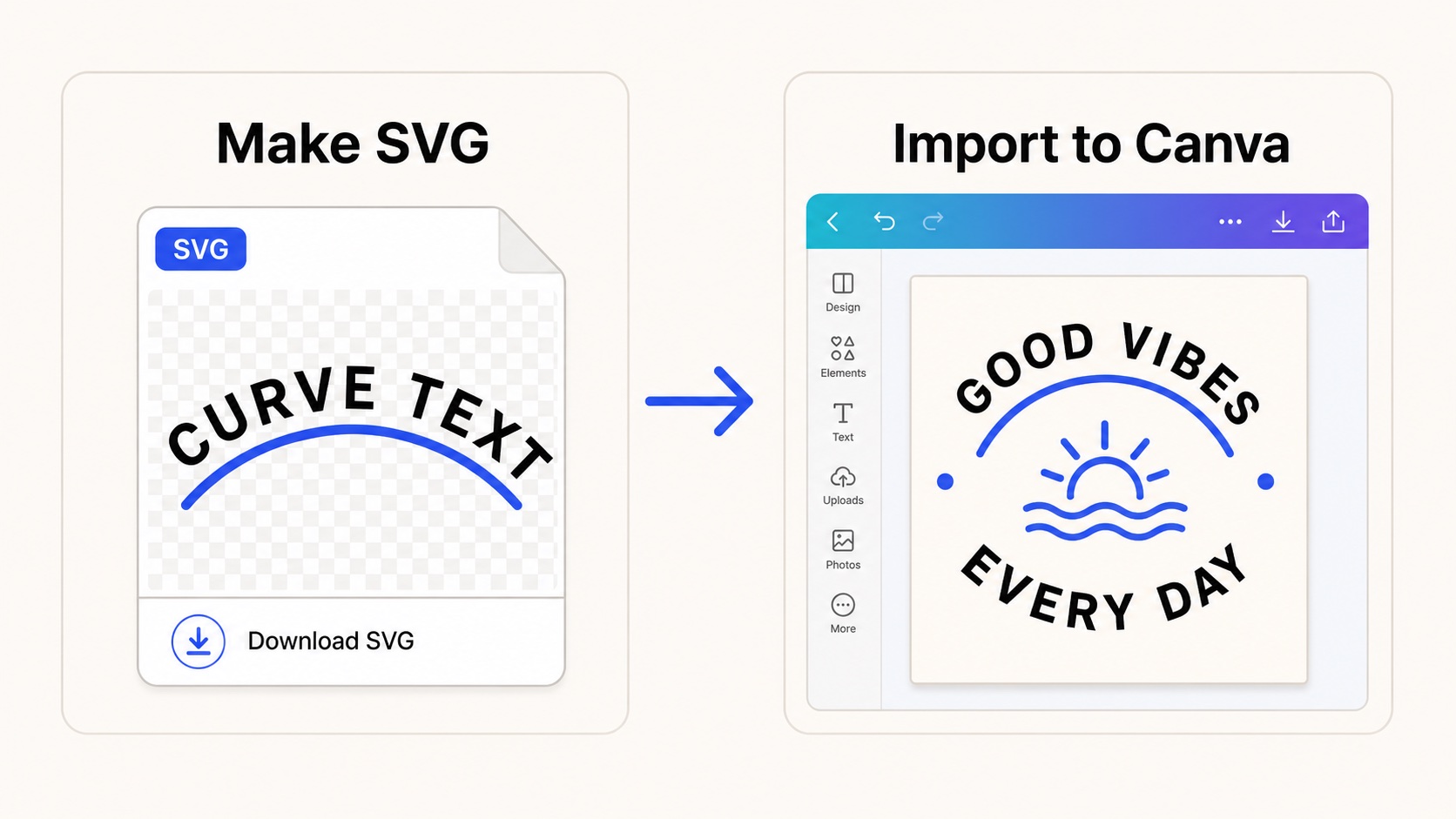
A focused workflow: make the curved text as SVG first, then place it into Canva.
Quick answer
Use Canva when you are already designing the whole layout there. Use our curve text generator when you want a clean curved text file first, especially an SVG master that can be reused in Canva, Figma, Illustrator, Cricut-style workflows, or product mockups.
Canva has its own curved text features, including a curved text tool and text effects. The tradeoff is that you are working inside a larger design editor. That is convenient for full layouts, but it can feel heavy when the only job is to make one arched word, badge label, or circle text asset.
When Canva is the better choice
- You are designing the final social graphic, flyer, thumbnail, or poster in Canva.
- You want to use Canva templates, stock assets, or brand-kit layout tools.
- The curved text does not need to become an editable SVG master file.
When the generator is faster
- You only need the curved text, not a full design canvas.
- You want to export SVG for sharp scaling or later vector editing.
- You need a transparent PNG to drop onto a photo, mockup, or listing image.
- You want arc, circle, wave, or custom path text without hunting through a large editor.
Recommended workflow
- Create the text with our curve text generator.
- Export SVG if you want an editable master file.
- Export PNG if you only need a finished transparent overlay.
- Upload the file to Canva and place it into the final layout.
Practical default: make the curved text outside Canva when you care about reusable SVG output. Make it inside Canva when the design will live only inside Canva.