Compare
Curve Text Generator vs Photoshop: Curved Text Workflow
Photoshop can create type on a path, and it is powerful when your final design is a photo edit or product mockup. But if the curved text itself needs to be exported cleanly, a focused generator is often faster.
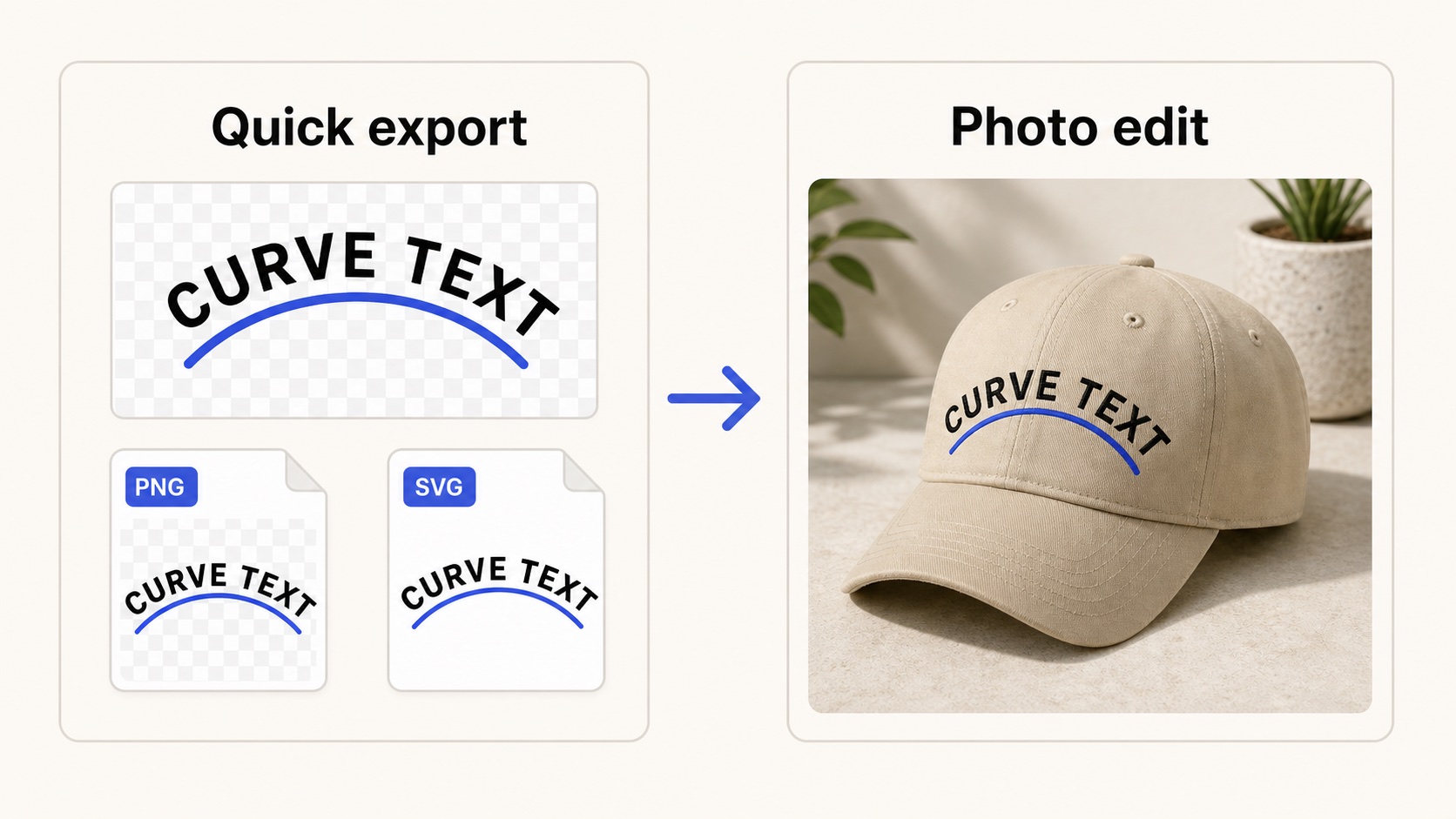
Use the generator for a clean curved text asset, then place it into a photo edit.
Quick answer
Use Photoshop when the curved text must be blended into a photo, texture, product shot, or realistic mockup. Use our curve text generator when you need the text as a clean transparent PNG or SVG before it enters Photoshop.
Photoshop is a full image editor, so it gives you masking, lighting, textures, and photo effects. That power is useful at the final compositing stage. It can be slower when you only need one arched word, circle badge, or sticker-style curved text file.
When Photoshop is the better choice
- You are placing text onto a product photo, apparel mockup, or image composite.
- You need photo effects, masks, shadows, lighting, or texture blending.
- The final deliverable is a raster image rather than an editable vector file.
When the generator is faster
- You need SVG export for later vector editing or cutting workflows.
- You want a transparent PNG without setting up a full Photoshop file first.
- You are making simple arched text, circle text, wave text, stickers, or labels.
- You want to keep the curved text asset separate from the final photo edit.
Recommended workflow
- Create the curved text on a transparent canvas.
- Export PNG for a finished photo overlay, or SVG for a reusable master file.
- Place the export into Photoshop.
- Use Photoshop for shadows, masks, blending, and final image polish.
For photo-heavy designs, Photoshop is the finishing tool. For reusable curved lettering, make the asset first and keep the SVG.